---
updatedAt: 2026-08-21T19:39:02.000Z
agentTools:
  projectIndex: https://developers.byallaccounts.morningstar.com/llms.txt
---

# TradePMR - Financial Advisors - First Clearing SFTP

FI ID: 111314

**Feed access personas:** Financial Advisors/Reps

<Callout icon="🚧" theme="warn">
  ### Feed access pre-requisites

  This feed supports Financial Advisor (Rep) level data.

  - For Branch level data, please see <Anchor target="_blank" href="https://developers.byallaccounts.morningstar.com/docs/tradepmr-branch-level-first-clearing-sftp">TradePMR - Branch Level - First Clearing SFTP</Anchor>.
</Callout>

## Onboarding Instructions

**Step 1:** Contact TradePMR at <datafeeds@tradepmr.com> to request getting your data added to Morningstar ByAllAccounts direct feed.

* Ensure you cc <byallaccounts-custodians@morningstar.com> in your request email for increased visibility.

<details>
  <summary>Request Details</summary>

  <ul>
    <li>TradePMR may require additional information to process the request</li>
    <li>A list of accounts to confirm eligibility for the feed</li>
    <li>Client agreements, depending on the documentation already on file for the relationship</li>
  </ul>
</details>

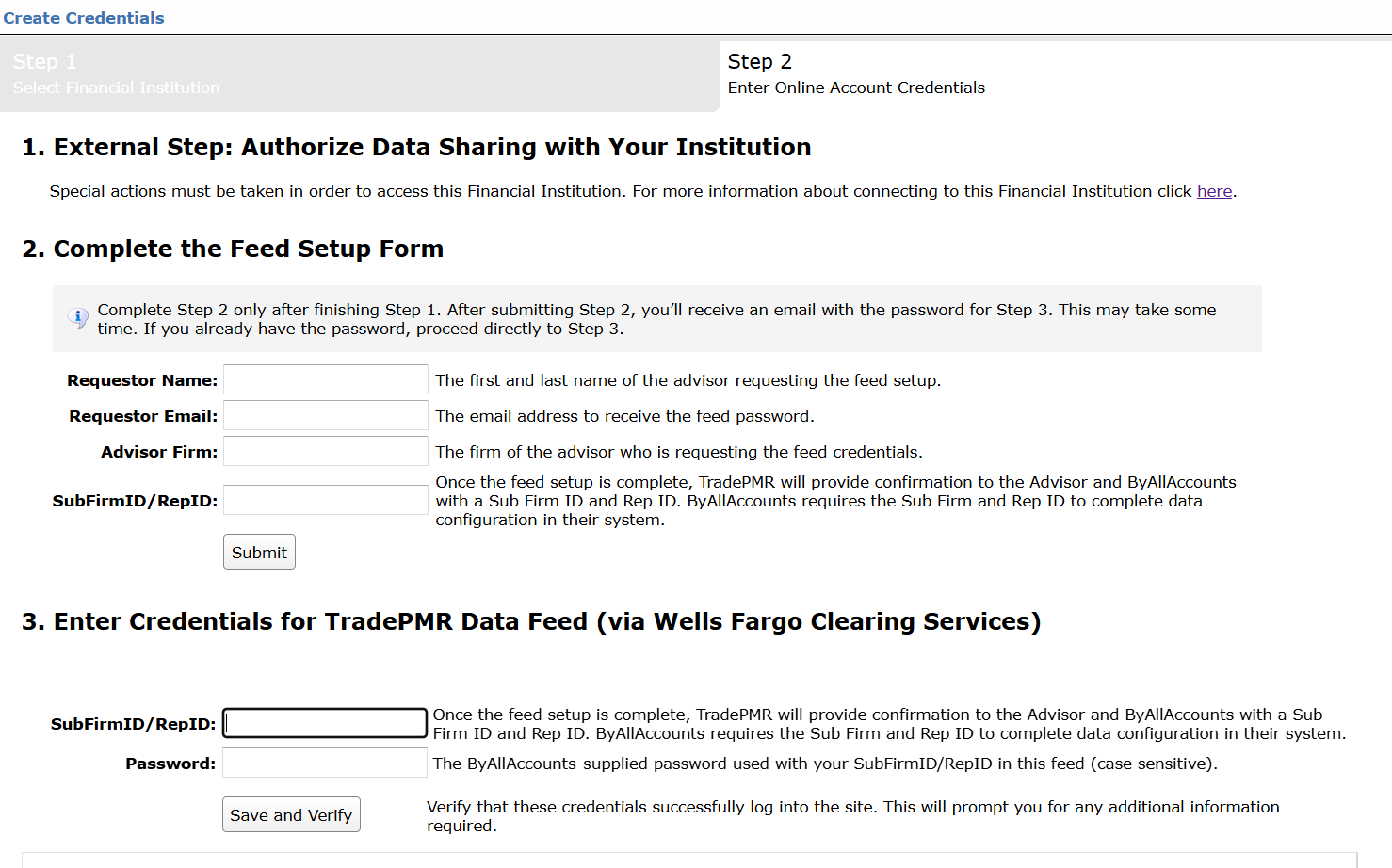
**Step 2:** Once the feed setup is complete, TradePMR will provide confirmation to both the Advisor and ByAllAccounts, including the SubFirm ID and Rep ID. These values are required for ByAllAccounts to complete the data configuration.

**Step 3:** Submit the Feed Setup Form in [AccountView](https://www.byallaccounts.net/BAAWebApp/BAALogin.html)

<details>
  <summary>Product screenshot</summary>

  <figure>
    <img src="https://files.readme.io/83189bce7f71a8278252bd6a4a4c6e6ef5afd22b9e9e1446707952f5e7d19dad-Screenshot_2026-01-21_155054.png" loading="lazy" style={{ maxWidth: "100%", height: "auto", borderRadius: "8px" }} alt="Product screenshot" />
  </figure>
</details>

**Step 4:** ByAllAccounts will complete the final configurations and share the feed password.

<details>
  <summary>Feed password delivery details</summary>

  <table border="1" cellPadding="10" cellSpacing="0" style={{ marginTop: '10px', borderCollapse: 'collapse' }}>
    <tbody>
      <tr>
        <td>ByAllAccounts Password Email Subject</td>

        <td>
          ByAllAccounts/TradePMR Data Feed (via Wells Fargo Clearing Services)\[ByAllAccounts SalesForce Case Number]
        </td>
      </tr>

      <tr>
        <td>ByAllAccounts Password Email Sender</td>

        <td>
          <a href="mailto:baa-service@alerts-morningstar.com">
            [baa-service@alerts-morningstar.com](mailto:baa-service@alerts-morningstar.com)
          </a>
        </td>
      </tr>

      <tr>
        <td>ByAllAccounts SalesForce Case Number</td>

        <td>
          This is the reference number you will have received to track your request after completing step 3.
        </td>
      </tr>
    </tbody>
  </table>
</details>

**Step 5:** Enter feed credentials in AccountView and aggregate accounts.

<details>
  <summary>Feed credential details</summary>

  <ul style={{ paddingTop: '10px' }}>
    <li>Username: SubFirmID/RepID</li>
    <li>Password: Shared by ByAllAccounts via email in step 4</li>
    <li>If you have more than one SubFirmID/RepID, you need to create multiple credentials. These will share the same password unless noted otherwise.</li>
  </ul>
</details>

<Callout icon="📘" theme="info">
  For detailed instructions on how to link accounts once you have your feed credentials, please refer to the following training video: [Linking Accounts and Credentials with Direct Feeds](https://outreach.morningstar.com/i/4fjs009jWdvBhkP56PO6eNkx6Gh5TPMyV0vRwdd8McBhK4500nLTSsoNjA8zMoHD6LzPLUSSIGNbD8GcgdNhD93V252N69DKmfPLUSSIGNO2B7aAFcWGnCFqzBUnGBd9CK28PLUSSIGNz9uCikaHS?signature=none)
</Callout>