

For Advisors
This page covers the advisor aggregation workflow for the Connect components.
For technical reference on embedding and customizing each component, see Account Linking and Account Summary.
For the investor aggregation workflow, see For Investors.
The full book of business
Advisors today are multi-custodial. Client accounts are spread across custodians, clearing firms, trust companies, and other financial institutions. To plan, report, trade, and comply, advisors need all of those accounts flowing into one place.
Advisor aggregation is how that book of business gets into the advisor's technology platform.
ByAllAccounts reaches that data through a direct feed network, and through the same aggregation methods investors use to access a broader set of professional-only sources. This page covers the advisor account linking and connection management experience across both.
Linking an account for the first time
Account linking is a three-step process.
The advisor selects an institution from a grid of popular options or searches by name or website URL.
The advisor authenticates with the institution. This step looks different depending on the institution. See details below.
The advisor selects which accounts to link.
What to expect at different financial institutions
Every financial institution has its own requirements for authorizing access.
Credential-based entry
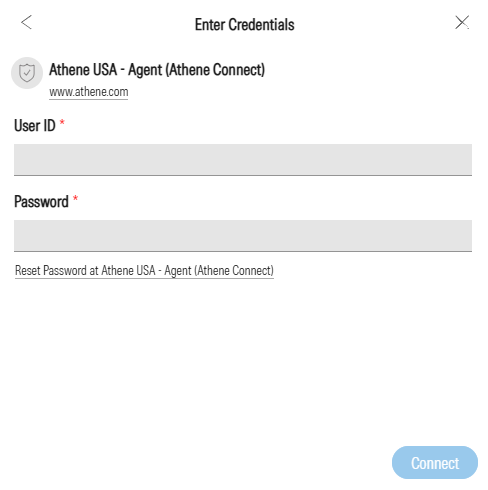
The advisor enters credentials to authenticate with the institution. The specific fields vary by institution. After entering credentials, the advisor proceeds to account selection upon successful authentication.
Open banking
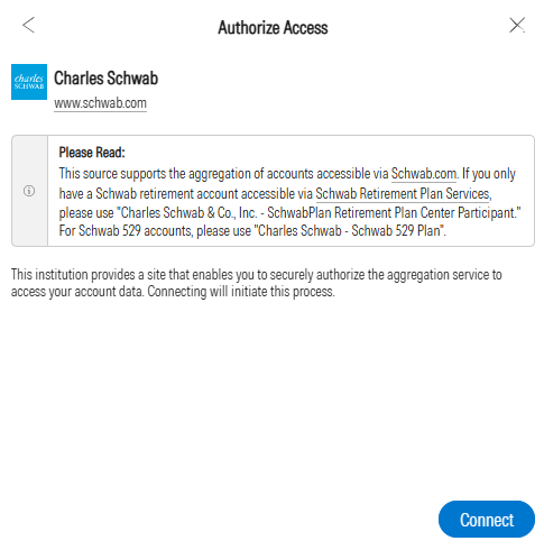
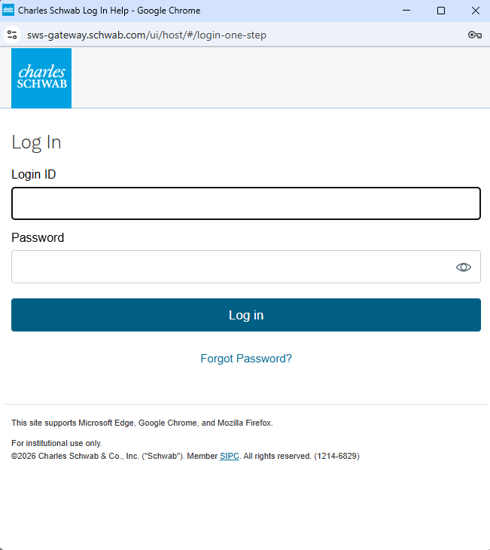
Instead of entering credentials in the Account Linking component, the advisor is redirected to the institution's own site to authenticate directly and grant access via a secure token. Some institutions support delegate access through open banking, which allows the advisor to bring in managed client assets without requiring the client to authenticate separately. Account selection happens on the institution's site during this flow. The advisor is returned after granting access and selecting accounts.
Direct feeds
Some institutions support direct data feeds. The setup process for these looks different from a standard connection and may involve additional steps outside of the application. See the next section for details.
Multi-factor authentication
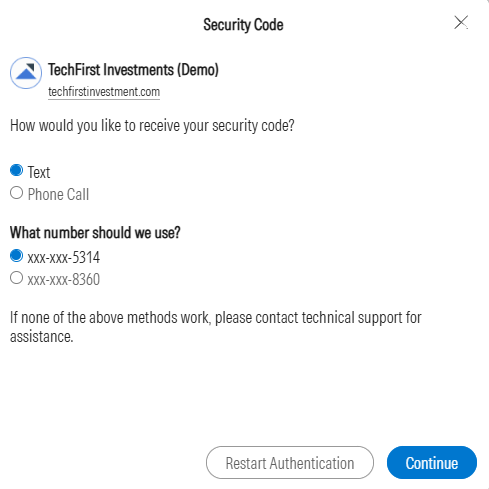
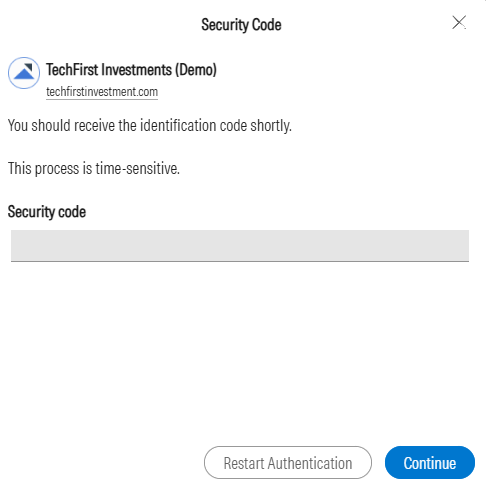
Some institutions may prompt the advisor for additional verification through security questions or a one-time activation code.
Special linking instructions
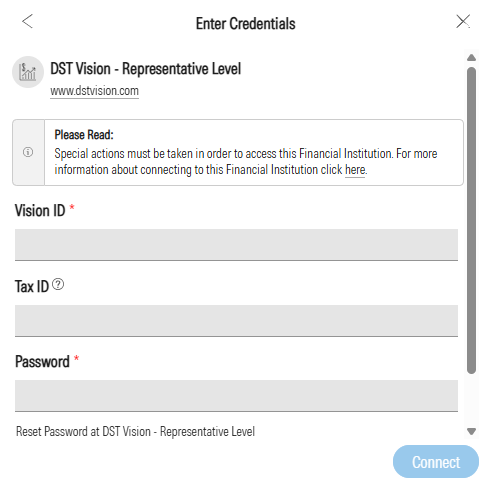
Some institutions require additional setup before the advisor can authenticate. These requirements appear as a gray notification before credential entry.
Known issues and unavailable institutions
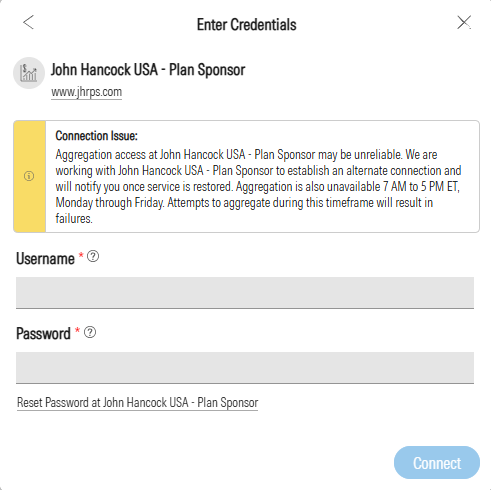
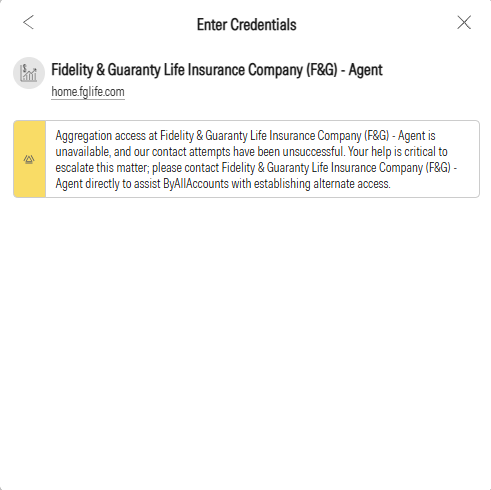
When an institution has a known issue, a message appears on the credential entry screen. These issues are identified by the ByAllAccounts support team. In some cases, the institution has a known connectivity or data issue but the advisor can still proceed with linking. In other cases, the message indicates the institution is fully unavailable, and the advisor cannot link until the issue is resolved.
Setting up a direct data feed
Direct feeds are established data sharing arrangements between ByAllAccounts and financial institutions that deliver account data through secure, structured file transfers. They cover custodians, clearing firms, broker-dealers, retirement recordkeepers, trust companies, insurance companies, and alternative investment platforms.
The data accessible through a feed varies by authorization level. Most feeds deliver data at the advisor or representative level. Some also support broader access at the branch, firm, or enterprise level, depending on what the financial institution and the feed support.
Advisor Feed Onboarding Hub lists available feeds and institution-specific onboarding instructions.
What to expect during setup
What happens during setup depends on who provisions the feed credentials. For some institutions, the advisor receives credentials directly from the institution and enters them like any other connection. For ByAllAccounts-credentialed feeds, the application provides a setup form that coordinates between the advisor, the institution, and ByAllAccounts.
The advisor follows the institution's process to authorize data sharing. This step happens outside of the application and varies by institution. It may involve completing a form on the institution's website, submitting a data access agreement, or contacting the institution directly.
The advisor submits the feed setup form in the application with their name, email, firm, and authorization identifier. This notifies the ByAllAccounts operations team and begins the credential provisioning process.
When the feed credentials arrive by email, the advisor returns to enter them. Accounts begin aggregating.
After the form is submitted in step 2, the ByAllAccounts operations team validates the request and emails the feed password, typically within a business day when step 1 is complete. Until the advisor returns to enter credentials, the feed connection appears on Account Summary with a yellow notification that includes a hyperlink back to credential entry.
Once credentials are entered, automatic account management is enabled by default, adding all discovered accounts and any subsequent ones automatically. The advisor can disable this to manage selections manually.
Managing existing connections
Once accounts are connected or a feed setup is in progress, the advisor's ongoing home is Account Summary. This is where they monitor connection health and manage their linked institutions and feeds.
The Account Summary component is one of two ways to surface this data. Platforms that want full control over the UI can use APIs directly to build their own connection management experience. See Integration Paths for details on both approaches.
What the advisor sees
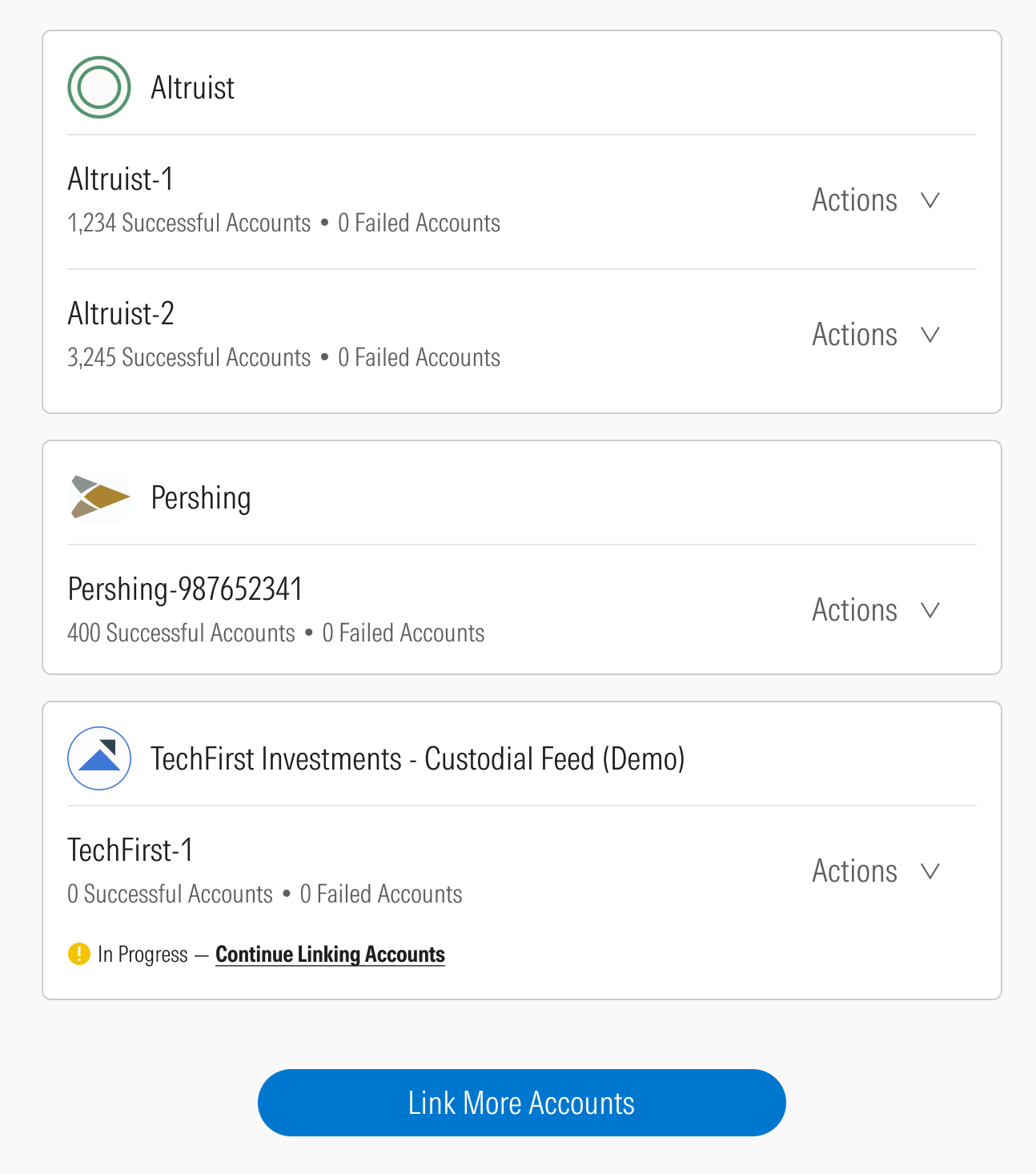
For advisors, Account Summary is organized at the credential level. Each card represents a single credential at a financial institution and displays the credential identifier, the number of successfully aggregating accounts, the number of failed accounts, and an Actions menu.
When an advisor has multiple credentials at the same institution, each one appears as a separate entry under the institution header. For example, an advisor with two master accounts at the same custodian sees two credential cards under that custodian.
Connection states
The main body of Account Summary lists the advisor's active credentials. When credentials are in a transitional or actionable state, they surface in dedicated sections.
Credentials where accounts are actively aggregating after recent linking activity. Data is not yet available.
Credentials with issues or incomplete states that require the advisor's action, surfaced at the top of Account Summary so they can be addressed quickly.
Connection errors and resolution
Account Summary uses color-coded error notifications to surface connection issues.
Yellow error notifications
These indicate that an account update did not complete successfully for reasons outside the advisor's control. The issue may resolve on its own in a subsequent update cycle. If it persists, the advisor should contact support.
Red error notifications
These indicate issues the advisor can resolve directly. They surface in the Needs Attention section. Common examples:
- Incorrect credentials entered during setup
- A credential that needs to be updated after a password change at the institution
- An action required on the institution's side before the connection can resume
Incomplete feed connections
When a feed setup form has been submitted but the feed credentials have not yet been entered, the credential surfaces in the Needs Attention section. This is not an error. The advisor returns to enter the credentials once the feed password arrives by email, as described in the previous section.
Credential and account actions
- Update credentials. When feed credentials or login credentials have changed, the advisor updates them here to restore the connection.
- Edit credential nickname. Rename a credential for easier identification.
- Add accounts. Find and link newly available accounts on an existing credential.
- Remove a credential. Remove the connection entirely. This removes the credential and all accounts associated with it.
- Link at a new institution. Start a new connection at a different financial institution.
Updated 4 months ago