

10. Customize the User Interface
Overview
After you integrate the components, you may consider modifications such as customizing the user interface by setting attributes, including those that refer to customized .css and font files.
There are multiple types of interface customizations you can optionally provide for the components to seamlessly blend their appearance into your parent page. Customizations must be explicitly set individually on each component. Apply these customizations using the files provided in:
assetsfolder for the Account Linking componentas_assetsfolder for the Account Summary component
The locations of these folders are described in step 5.
Instructions
1. Edit the customization files
Each customization type below describes the file you edit and the attribute you set on the component to apply it.
Content
Terminology — Override the static text (labels, buttons, dialog content) displayed in the components.
- File to edit:
i18n/en.json(in theassetsfolder for Account Linking,as\_assetsfolder for Account Summary) - Attribute to set:
translate-file-path - Note: Each component has its own
en.jsonfile with a different set of terms.
Styling
Styles — Override the default Morningstar Design System (MDS) styles for fonts, colors, and backgrounds.
- File to edit: Your custom CSS file
- Attribute to set:
override-css-file - Note: Each component has its own CSS file. To use a font other than the default MDS font, add a global rule like:
* {
  font-family: YourFont, Verdana, sans-serif !important;
}
Fonts — Override the default MDS fonts.
- File to edit: Your custom font definition file
- Attribute to set:
custom-fonts - Note: Each component has its own fonts file. Fonts defined here are then available to use in the CSS file specified by
override-css-file.
Optional features (Account Linking only)
Optional features — Toggle UI sections in the Account Linking component on or off.
- File to edit:
config/ui-config.json - Attribute to set:
ui-config-file
The currently supported options:
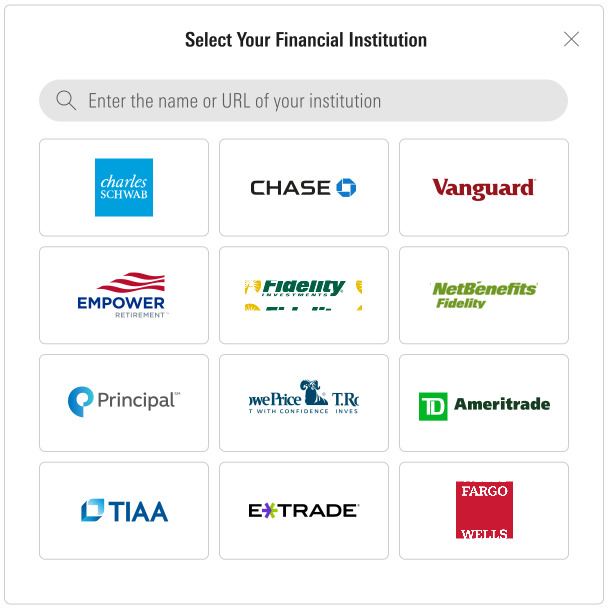
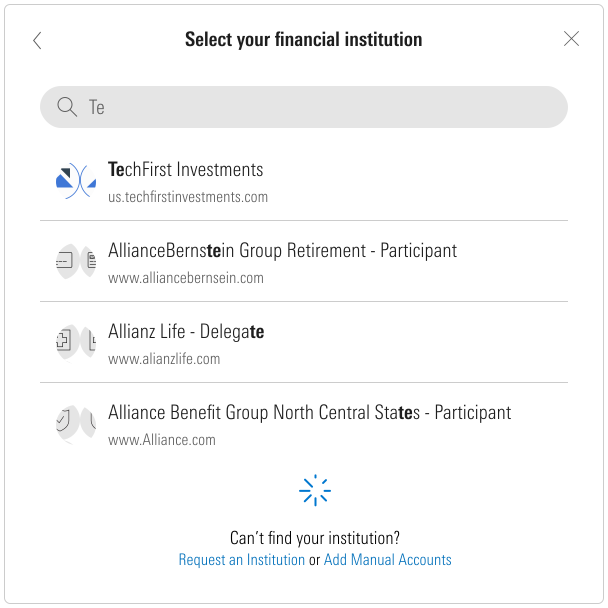
fiLogosVisible— controls whether the popular FI logos are shown in the FI selection step. Set totrueto show logos,falseto show only a search control and FI list.includeURLinSearch— controls whether FI URLs are included in the search criteria when the user is searching for an institution.
2. Configure your web server
Modify your web server to allow our origin (www.byallaccounts.net) to access the customization files. We suggest the following:
Header set Access-Control-Allow-Origin "www.byallaccounts.net"Header set Access-Control-Allow-Headers "Cache-Control,Content-Type,Accept,Referer,User-Agent,Sec-Fetch-Dest"Header set Access-Control-Allow-Methods "GET,OPTIONS"
If this access is not allowed, the components will not be able to access the customization files and each will use its own default version.
3. Set the attribute for each custom file
Set the appropriate attribute on each component to point to the corresponding custom file. For attribute information, see step 6.
Additional Configurability OptionsThe options documented here represent the subset of customizations you configure directly via
ui-config.json. Additional firm-level configurations are available for the components — such as financial institution exclusions, new institution requests, Account Summary default and chart views. Your Implementation Manager will guide you through these choices during the implementation phase.
Updated 6 months ago