

Apex Clearing Corporation - SFTP
FI ID: 110391
Feed access personas: Advisors, Firms
Onboarding Instructions
Step 1: Contact your APEX Account Executive to request that your data be added to the Morningstar ByAllAccounts feed.
- Ensure you cc [email protected] in your request email for increased visibility.
Request Details
- Specify the desired level of data access: Rep, Branch, or Correspondent.
- Request the following files:
- EXT 765 – Account Master
- EXT 869 – Cash Activity
- EXT 871 – Positions
- EXT 870 – Stock Activity
- EXT 872 – Trade Activity
- EXT 901 – Cash Balance
- For Branch and Correspondent level access, you may also request the optional files:
- EXT 747 - Security Master
- EXT 538 - Closed Accounts
Step 2: Apex will confirm the Rep/Branch/Correspondent ID to both the Advisor/Firm and Morningstar ByAllAccounts (used to configure accounts at ByAllAccounts).
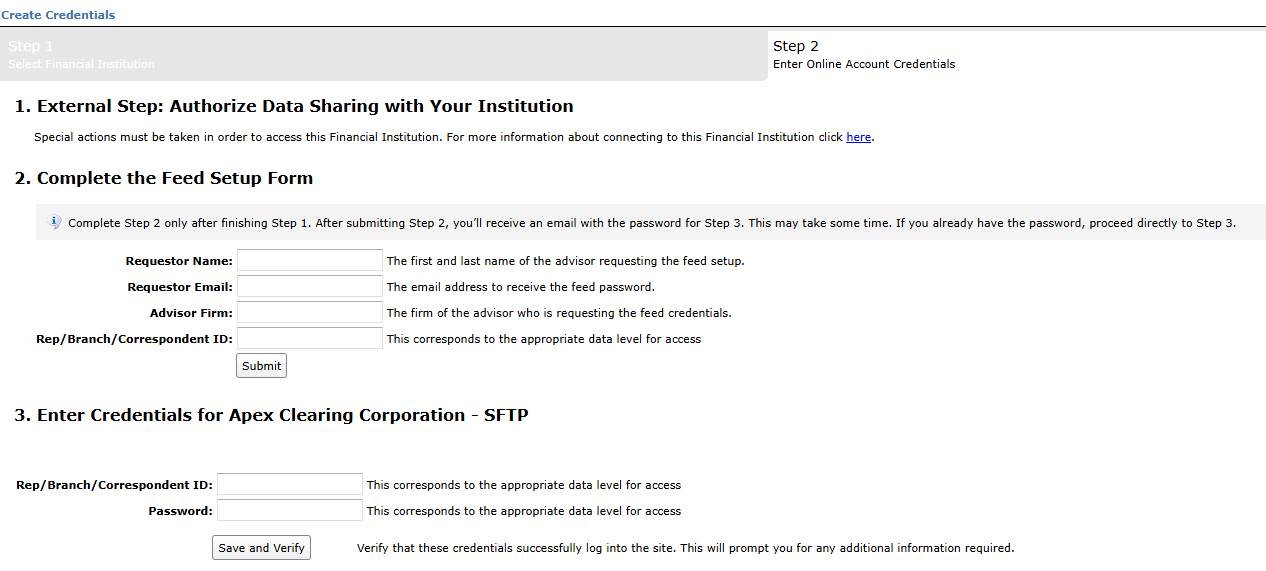
Step 3: Submit the Feed Setup Form in AccountView.
Product screenshot
Step 4: ByAllAccounts will complete the final configurations and share the feed password.
Feed password delivery details
| ByAllAccounts Password Email Subject | ByAllAccounts/Apex Clearing Corporation - SFTP [ByAllAccounts SalesForce Case Number] |
| ByAllAccounts Password Email Sender | [email protected] |
| ByAllAccounts SalesForce Case Number | This is the reference number you will have received to track your request after completing step 3. |
Step 5: Enter feed credentials in AccountView and aggregate accounts.
Feed credential details
- Username: Rep/Branch/Correspondent ID
- Password: Shared by ByAllAccounts via email in step 4
- If you have more than one Advisor Profile, you need to create multiple credentials. These will share the same password unless noted otherwise.
For detailed instructions on how to link accounts once you have your feed credentials, please refer to the following training video: Linking Accounts and Credentials with Direct Feeds
Updated 6 months ago
Did this page help you?