

For Investors
This page covers the investor aggregation workflow for the Connect components.
For technical reference on embedding and customizing each component, see Account Linking and Account Summary.
For the advisor aggregation workflow, see For Advisors.
The full financial picture
Everyone holds accounts across multiple institutions because different financial vehicles serve different needs. Whether an advisor is building a financial plan or an investor is managing their own portfolio, the full picture matters: every asset and every liability, across every institution. Account aggregation delivers that as a real-time balance sheet updated daily. This page covers the investor experience of connecting and managing those accounts.
Linking an account for the first time
Account linking is a three-step process.
The investor selects an institution from a grid of popular options or searches by name or website URL.
The investor authenticates with their institution. This step looks different depending on the institution. See details below.
The investor selects which accounts to link.
What to expect at different financial institutions
Every financial institution has its own requirements for authorizing access.
Credential-based entry
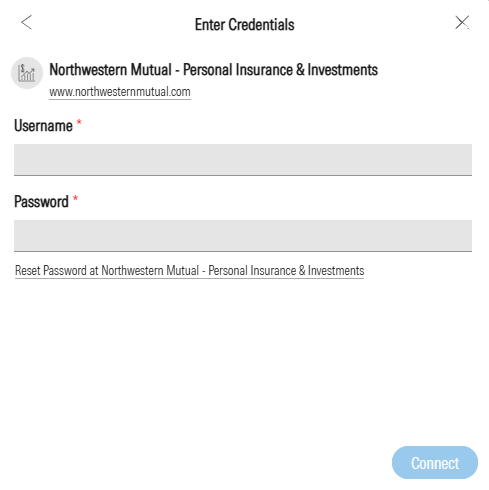
The investor enters the same login credentials they use on the institution's own website, typically a username and password. The specific fields vary by institution. After entering credentials, the investor proceeds to account selection upon successful authentication.
Open banking
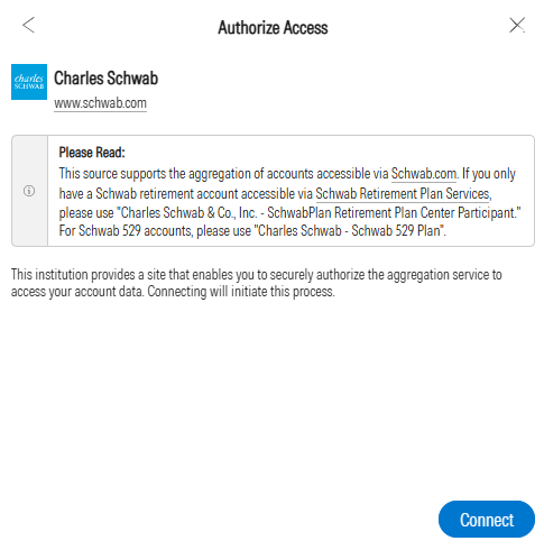
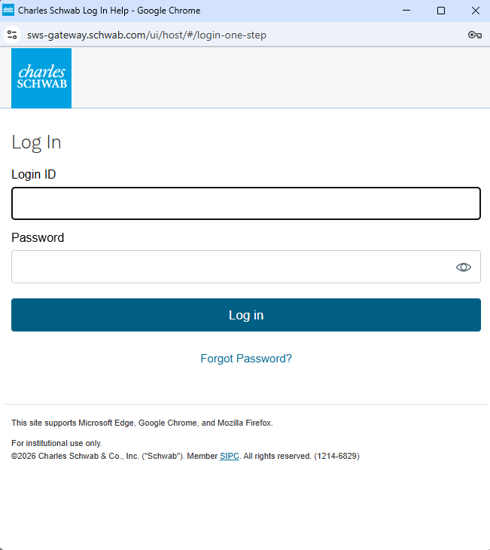
Instead of entering credentials in the Account Linking component, the investor is redirected to the institution's own site to authenticate directly and grant access via a secure token. Account selection also happens on the institution's site during this flow. The investor is returned to Connect after granting access and selecting accounts.
Multi-factor authentication
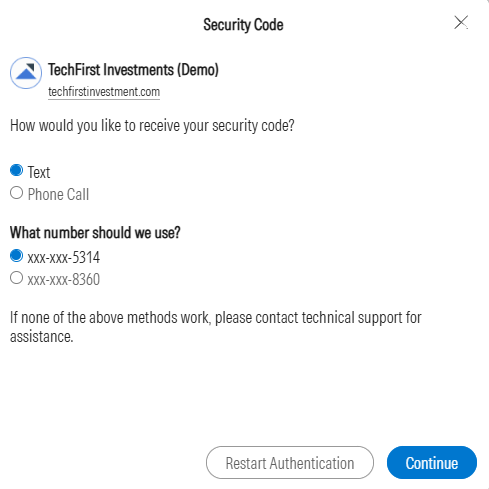
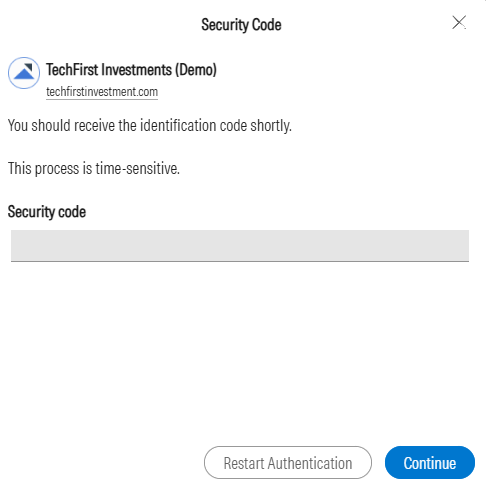
Some institutions may prompt the investor for additional verification through security questions or a one-time activation code.
Special linking instructions
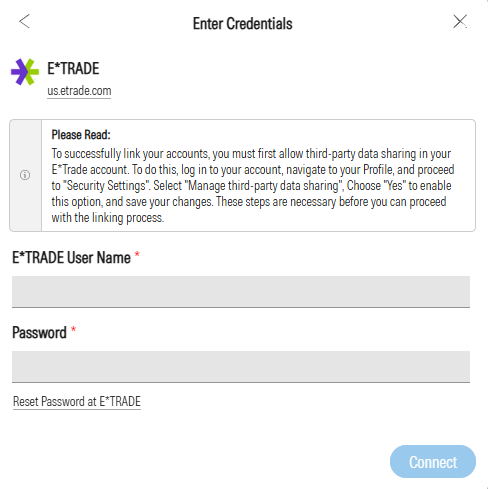
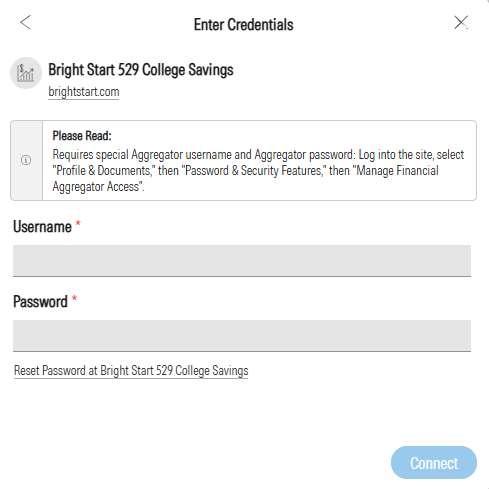
Some institutions require additional setup before credentials can be entered. For example, some institutions require the investor to generate a separate aggregation password on the institution's website. These instructions appear as a gray notification before credential entry.
Known issues and unavailable institutions
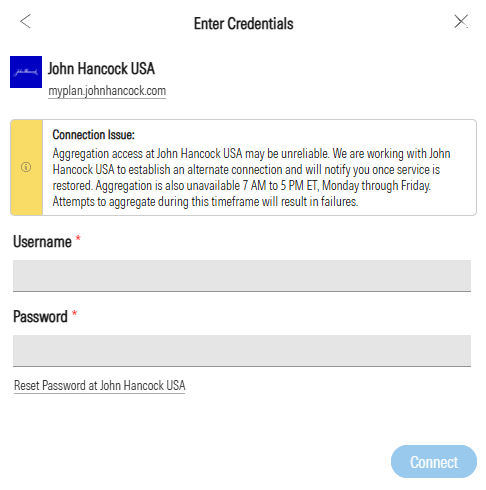
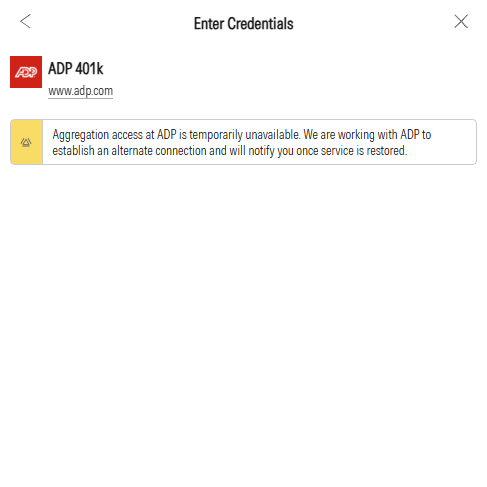
Yellow notifications on this screen indicate an issue with the institution's connection that is not user-actionable. These have been identified by the ByAllAccounts support team.
In some cases, the institution may have a known connectivity or data issue but the investor can still proceed with linking. In other cases, the institution is fully unavailable and the investor will not be able to link until the issue is resolved.
Managing existing connections
After linking, the investor is returned to Account Summary component and it becomes their ongoing home. This is where they monitor account data, resolve connection issues, and manage their linked institutions.
The Account Summary component is one of two ways to surface this data. Platforms that want full control over the UI can use APIs directly to build their own connection management experience. See Integration Paths for details on both approaches.
What the investor sees
Account Summary offers two views the investor can switch between at any time. Both views display the same underlying data. Each account shows its name, current balance, and time of last update. Most accounts update on a daily cycle. When a new account is first linked, data is pulled right away.
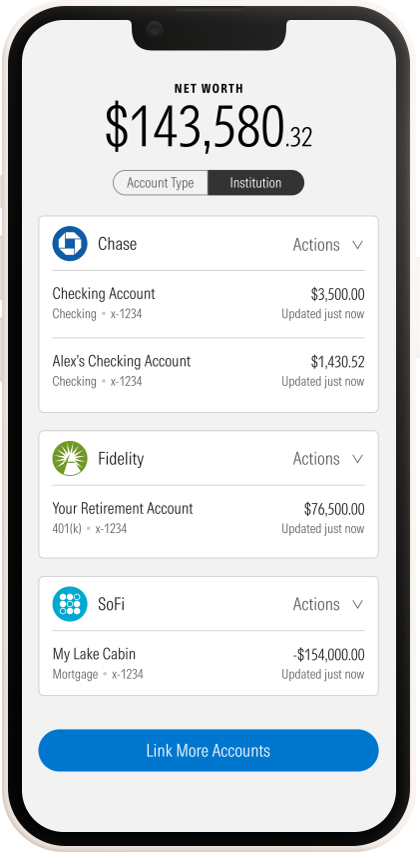
Institution view is the default. Accounts are grouped by credential, so all accounts at a single institution appear together.
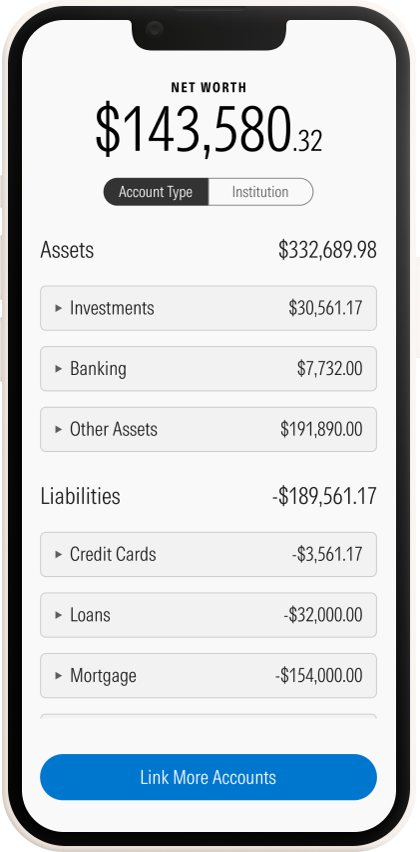
Account Type view organizes accounts into assets and liabilities: investments, banking, and other assets on one side, credit cards, loans, and mortgages on the other. This gives the investor a balance sheet view across all linked institutions. This view can be turned off as a configurable setting.
The main body of Account Summary displays the investor's linked accounts, grouped by institution or account type depending on the active view. When accounts are in a transitional or actionable state, they surface in dedicated sections.
Accounts actively aggregating after a completed linking flow. Data is not yet available. This is the first section the investor sees after exiting the linking flow.
Connections with user-actionable issues, surfaced at the top of Account Summary so the investor can act quickly.
Connection errors and resolution
Account Summary uses color-coded error notifications to surface connection issues.
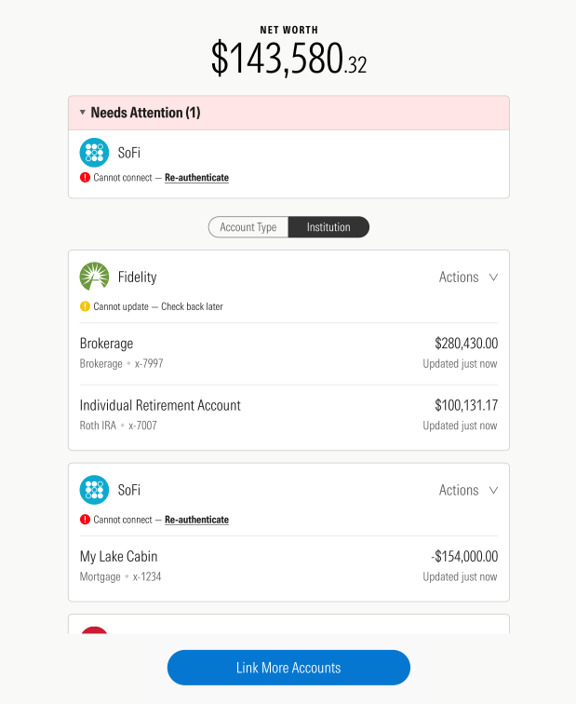
Yellow error notifications
These indicate that an account update did not complete successfully for reasons outside the investor's control. The issue may resolve on its own in a subsequent update cycle. If it persists, the investor should contact support.
Red error notifications
These indicate issues the investor can resolve directly. They are the most common type and surface in the Needs Attention section. Common examples:
- Incorrect credentials entered during linking
- A password changed on the institution's website that now needs to be updated in ByAllAccounts to match
- An action required on the institution's website before the connection can resume, such as accepting a user agreement, setting up additional security features, or updating profile preferences
Open banking connections are a specific case. They use tokens that expire periodically, and when that happens the connection enters a Needs Attention state. The investor reauthorizes by authenticating at the institution's site again: click Authorize or Reauthorize, log in at the institution, grant consent, select accounts, and return to Account Summary with the connection restored. Some institutions surface connection-specific issues during reauthorization, such as flagging certain account types as ineligible or requiring special handling for profiles with a large number of accounts.
Account and credential actions
- Update credentials. When the investor has changed their password at the institution's website, they update it here to restore the connection. This is the resolution for the most common red notification.
- Edit account name. Rename any linked account for easier identification.
- Remove an account. Remove an individual account from the aggregated view. The credential and other accounts at the same institution remain linked.
- Remove a credential. Remove the connection to the institution entirely. This removes the credential and all accounts associated with it.
- Discover additional accounts. Find newly available accounts on an existing credential without re-entering credentials.
- Link at a new institution. Start a new connection at a different financial institution. Returns to the first-time linking flow.
Updated 5 months ago